
Part 2: Similarity Search (OpenAI + Milvus/Zilliz)
Let’s deploy two Pulsar Functions (Embed2 and ZillizSearch1) to complete a similarity search on the vectors in our Zilliz database.
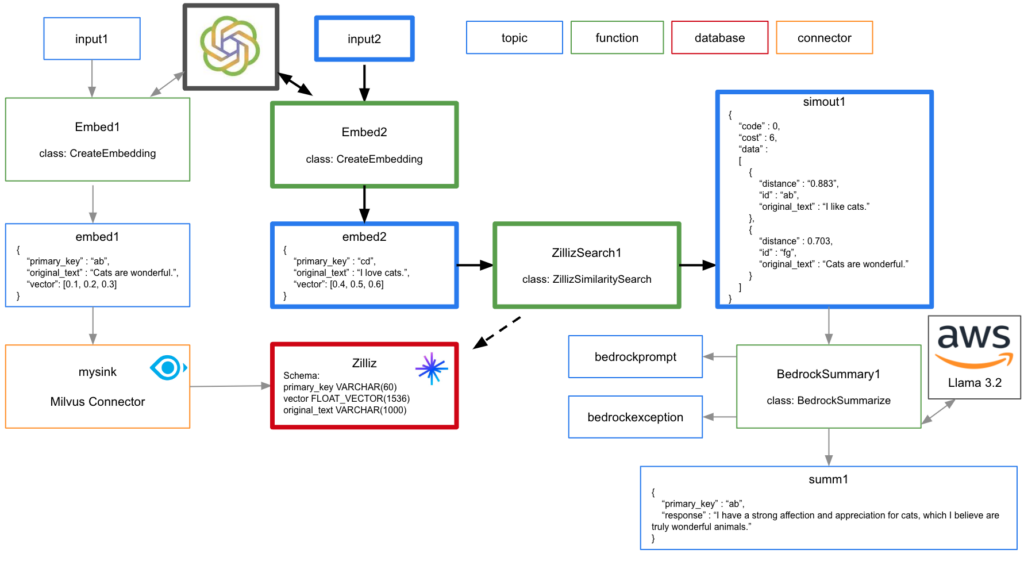
The video to the right is a high level overview of deploying and testing these Pulsar Functions.
Deploy Embed2
Code for this example can be found in streamnativerag2 class CreateEmbedding (this is the same class we used for deploying Embed1).
To deploy:
- Navigate terminal to the folder containing streamnativerag2.zip.
- Execute the following pulsarctl command. Be sure to edit the tenant in three places in the command where you would like to deploy the Pulsar Function (–input, –output, –tenant).
pulsarctl functions create --classname streamnativerag2.CreateEmbedding --py ./streamnativerag2.zip --inputs summitstudent1/developer/input2 --output summitstudent1/developer/embed2 --tenant summitstudent1 --namespace developer --name Embed2 --secrets '{"OPENAISECRET": {"path": "myopenaikey", "key": "apikey"}}'If the Pulsar Function starts deploying, you should see:
Created Embed2 successfullyIt may take a minute or two for the function to deploy. Once fully deployed, you should see Embed2 has a Status of Running. If you see any System Exceptions, view Troubleshooting Pulsar Functions.
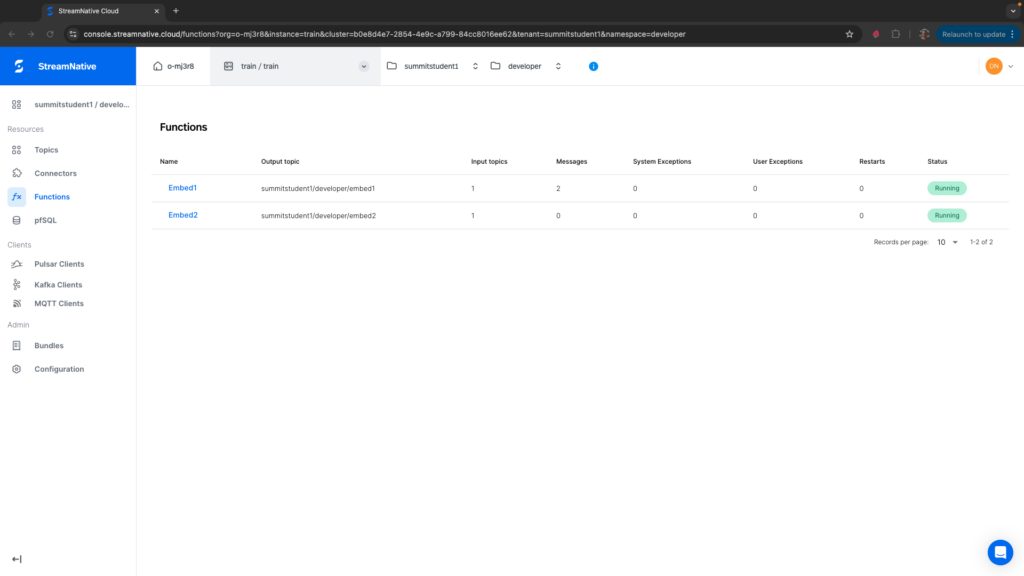
Test Embed2
To test our Python Pulsar Function, we need to produce a string message to topic specified in the –inputs field of the pulsarctl functions create command. In the example above this is summitstudent1/developer/input2. This can be done easily using the Rest API with a walkthrough available here.
We start by publishing a message describing an animal. Once we’ve confirmed Embed1 and the Milvus Connector are working, we can create embeddings about different animals.
curl -X POST https://<SERVER ENDPOINT>/admin/rest/topics/v1/persistent/summitstudent1/developer/input2/message \
  --header 'Authorization: Bearer <JWT TOKEN>' \
  --header 'Accept: application/json' \
  --header 'Content-Type: application/octet-stream' \
  --data-binary 'I like cats.'
If the Pulsar Function triggered, you should see 1 in the Messages column.
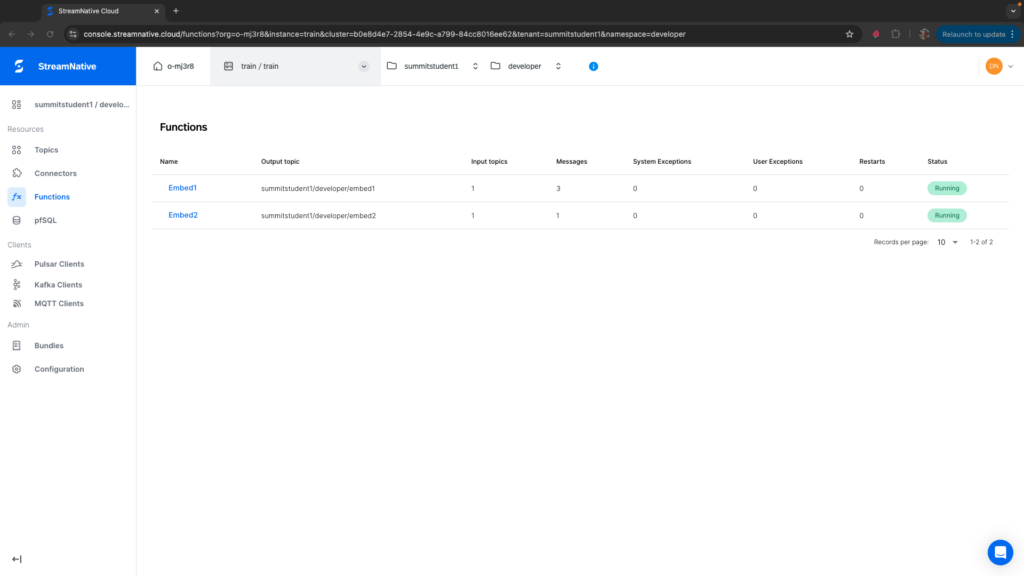
If you see any System Exceptions or User Exceptions, view Troubleshooting Pulsar Functions.
We will use the UI to check the results in the output topic. Navigate to the correct tenant and namespace where you deployed the Pulsar Function. Select the embed2 topic.
Before trying to peek at the messages, be sure you see some bytes in the Storage Size. While messages written to a topic without a subscription are by default eligible for deletion, they would not normally be deleted right away. If the storage size is still zero right after triggering the Pulsar Function, this could be a sign that the Pulsar Function did not produce results to the output topic correctly. View the section on Troubleshooting Pulsar Functions for more information.
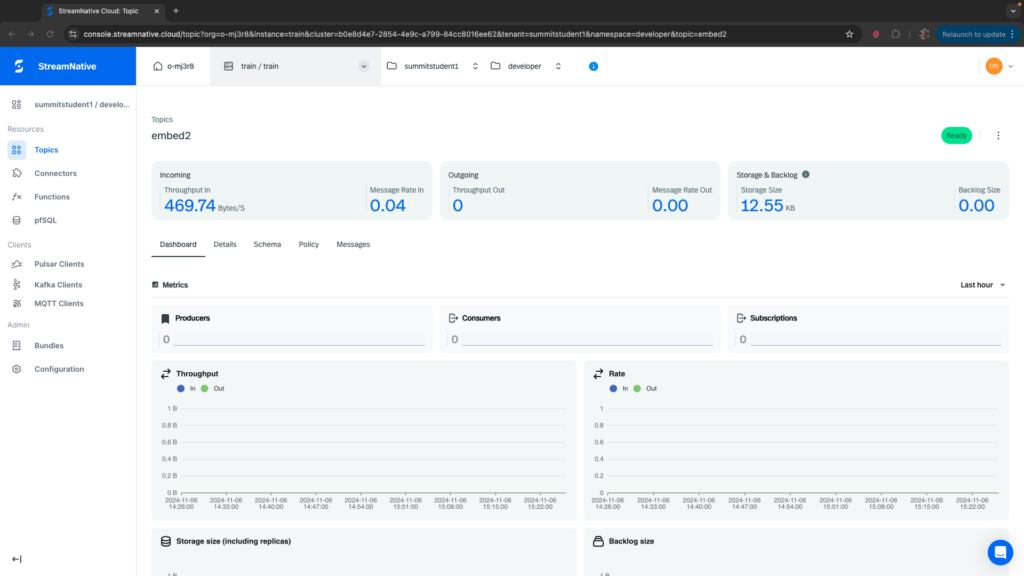
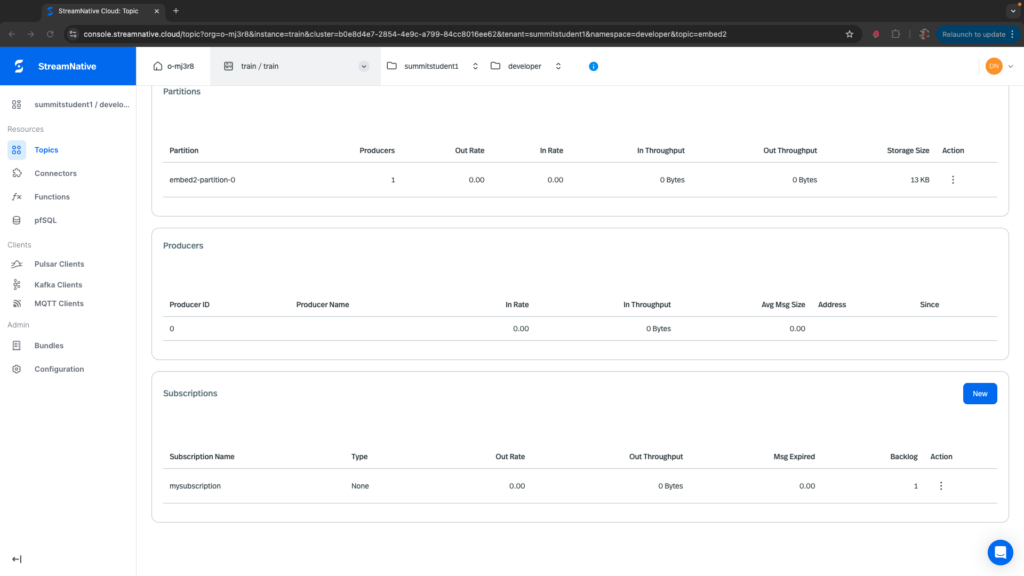
To peek at the messages, navigate to the Details tab and create a subscription at the bottom of the page. Here I created a subscription called mysubscription and there is one message in the backlog.
To view these messages, navigate to the Messages tab, select the partition embedding1-partition-0, the subscription mysubscription, and select a number of messages to peek. You should see the String message in JSON format with primary_key, original_text, and vector fields.
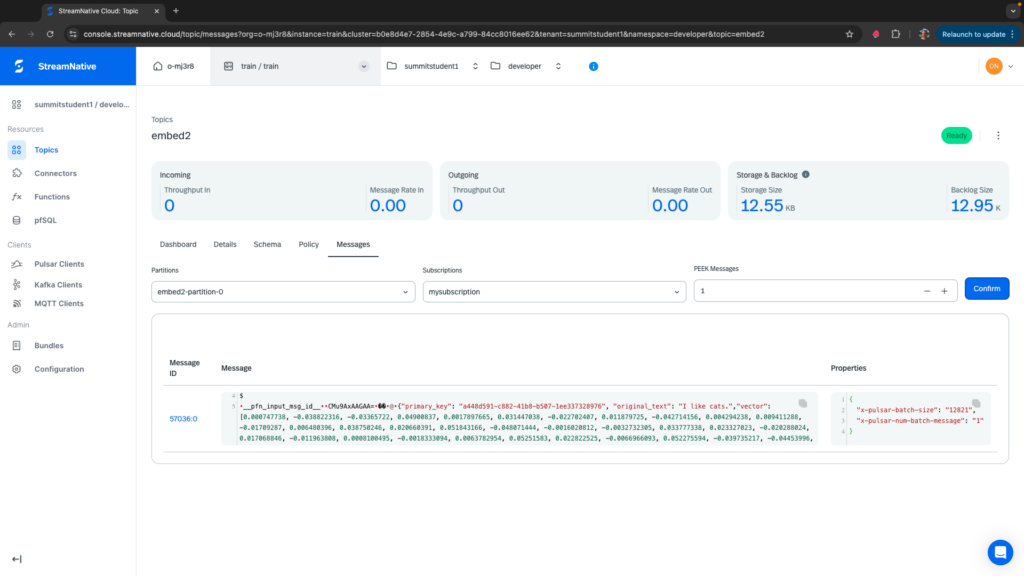
In the next section we use this vector to complete a similarity search of vectors in our Zilliz collection.
Deploy ZillizSearch1
Code for this example can be found in streamnativerag2 class ZillizSimilaritySearch.
To deploy:
- Navigate terminal to the folder containing streamnativerag2.zip.
- Execute the following pulsarctl command. Be sure to edit the tenant in three places in the command where you would like to deploy the Pulsar Function (–input, –output, –tenant). Replace the –user-config zilliz_endpoint with the endpoint of your Zilliz database.
Note: You can use the Zilliz endpoint from the UI. We append “/v2/vectordb/entities/search” to the url in the Python code for the similarity search endpoint.
pulsarctl functions create --classname streamnativerag2.ZillizSimilaritySearch --py ./streamnativerag2.zip --inputs summitstudent1/developer/embed2 --output summitstudent1/developer/simout1 --tenant summitstudent1 --namespace developer --name ZillizSearch1 --secrets '{"ZILLIZSECRET": {"path": "zillizsecret", "key": "mysecret"}}' --user-config "{\"zilliz_endpoint\":\"https://in03-0458e189d5c9a72.serverless.gcp-us-west1.cloud.zilliz.com\"}"If the Pulsar Function starts deploying, you should see:
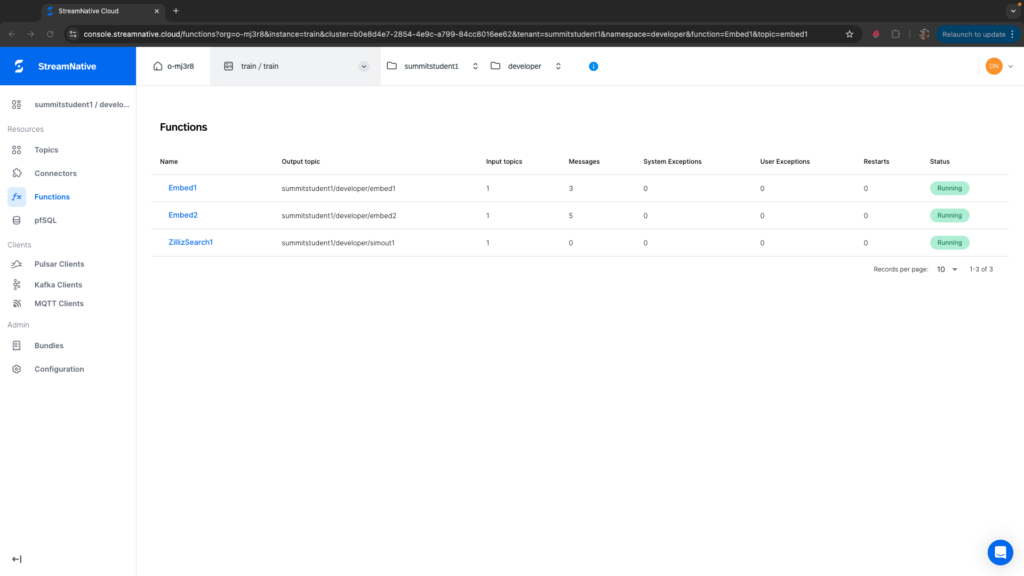
Created ZillizSearch1 successfullyIt may take a minute or two for the function to deploy. Once fully deployed, you should see the following on the Functions page. If you see any System Exceptions, view Troubleshooting Pulsar Functions.
Test ZillizSearch1
To test our Python Pulsar Function, we need to produce a string message to topic specified in the –inputs field of the pulsarctl functions create command. In the example above this is summitstudent1/developer/input2. This can be done easily using the Rest API with a walkthrough available here.
curl -X POST https://<SERVER ENDPOINT>/admin/rest/topics/v1/persistent/summitstudent1/developer/input2/message \
  --header 'Authorization: Bearer <JWT TOKEN>' \
  --header 'Accept: application/json' \
  --header 'Content-Type: application/octet-stream' \
  --data-binary 'I like cats.'
If the ZillizSearch1 triggered, you should see 1 in the Messages column.
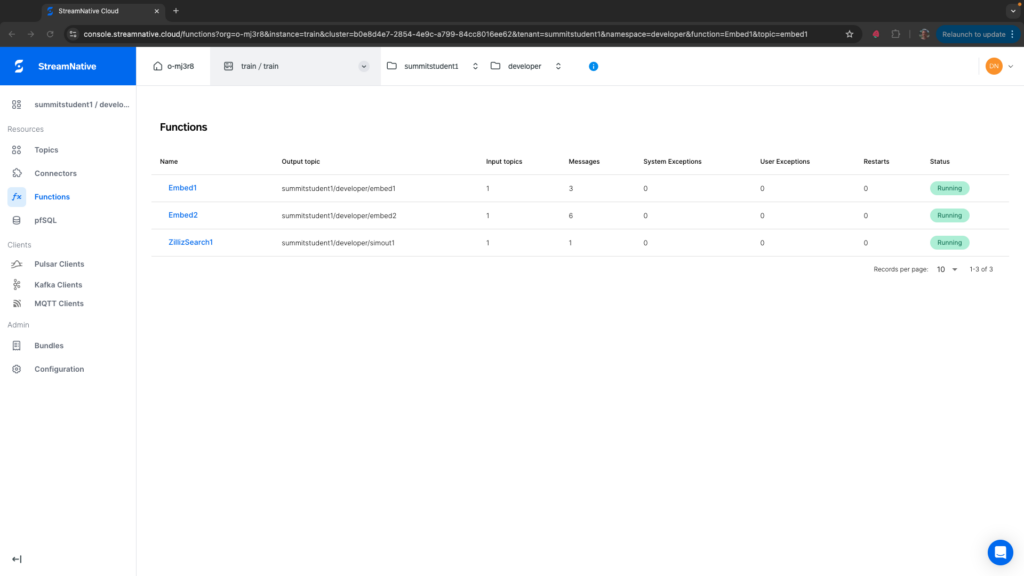
If you see any System Exceptions or User Exceptions, view Troubleshooting Pulsar Functions.
We will use the UI to check the results in the output topic. Navigate to the correct tenant and namespace where you deployed the Pulsar Function. Select the simout1 topic.
Before trying to peek at the messages, be sure you see some bytes in the Storage Size. While messages written to a topic without a subscription are by default eligible for deletion, they would not normally be deleted right away. If the storage size is still zero right after triggering the Pulsar Function, this could be a sign that the Pulsar Function did not produce results to the output topic correctly. View the section on Troubleshooting Pulsar Functions for more information.
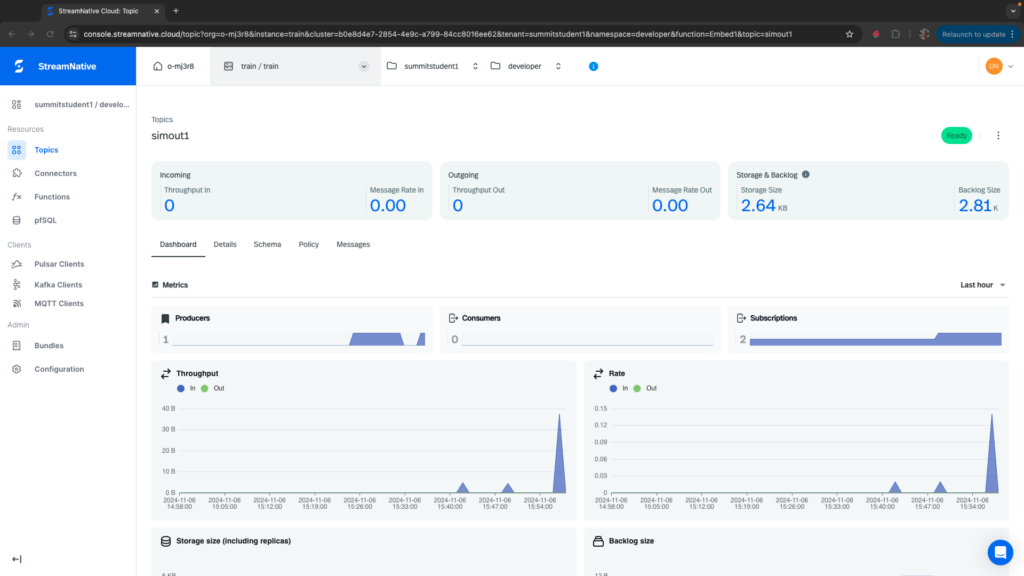
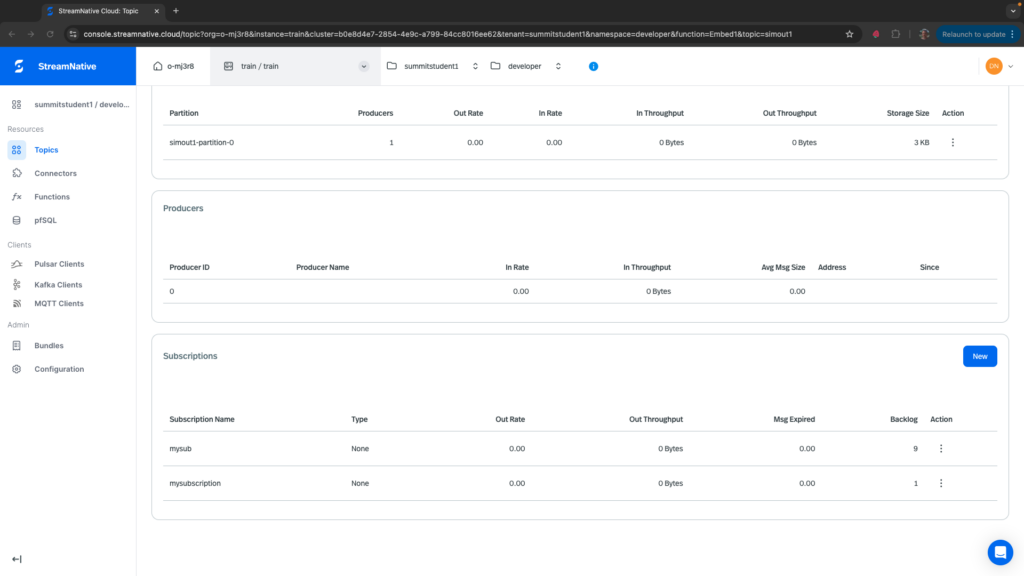
To peek at the messages, navigate to the Details tab and create a subscription at the bottom of the page. Here I created a subscription called mysubscription and there is one message in the backlog.
To view these messages, navigate to the Messages tab, select the partition simout1-partition-0, the subscription mysubscription, and select a number of messages to peek.
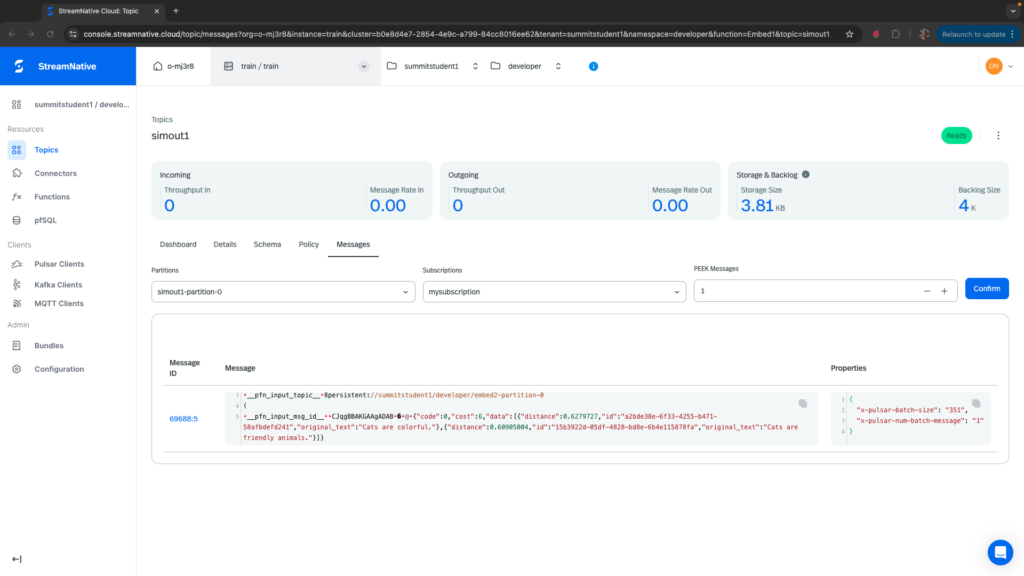
You can see that when using “I like cats.” the similarity search returns “Cats are colorful.” and “Cats are friendly animals.”.
Next we will use AWS Bedrock with Meta’s Llama 3.2 to summarize the data returned by the similarity search.