
Part 2: Similarity Search (AWS Bedrock with Cohere + Postgres and pgvector)
Next we will deploy two Pulsar Functions (CreateQuery1 and Sim1) to create embeddings and complete a similarity search.

The video to the right is a high level overview of deploying and testing the Pulsar Functions.
Deploy CreateQuery1
Code for this example can be found in streamnativerag1 class CreateCohereEmbedding (yes this is the same class we used for CreateEmbedding1).
To deploy:
- Navigate terminal to the folder containing streamnativerag1.zip.
- Execute the following pulsarctl command. Be sure to edit the tenant in three places in the command where you would like to deploy the Pulsar Function (–input, –output, –tenant).
- We will add a user-input to the pulsarctl functions create command. We’ve written the Pulsar Function to create a Cohere search_document by default. If the below user-config is added, the Pulsar Function will create a search_query. We also prepend the primary_key with “sq: ” to verify we have used a search_query.
pulsarctl functions create --classname streamnativerag1.CreateCohereEmbedding --py ./streamnativerag1.zip --inputs summitstudent1/developer/topicB --output summitstudent1/developer/search1 --tenant summitstudent1 --namespace developer --name CreateQuery1 --secrets '{"BEDROCKSECRET1": {"path": "bedrocksecret", "key": "accesskey"}, "BEDROCKSECRET2": {"path": "bedrocksecret", "key": "secretaccesskey"}}' --user-config "{\"input_type\":\"search_query\"}"If the Pulsar Function starts deploying, you should see:
Created CreateQuery1 successfullyIt may take a minute or two for the function to deploy. Once fully deployed, you should see CreateQuery1 has a Status of Running. If you see any System Exceptions, view Troubleshooting Pulsar Functions.

The Python Function will make a call to AWS Bedrock to create a search_query type embedding from Cohere.
Test CreateQuery1
To test CreateQuery1, we can publish a string message to topicB.
curl -X POST https://<SERVER ENDPOINT>/admin/rest/topics/v1/persistent/summitstudent1/developer/topicB/message \
  --header 'Authorization: Bearer <JWT TOKEN>' \
  --header 'Accept: application/json' \
  --header 'Content-Type: application/octet-stream' \
  --data-binary 'I like cats.'
If the Pulsar Function triggered, you should see 1 in the Messages column.
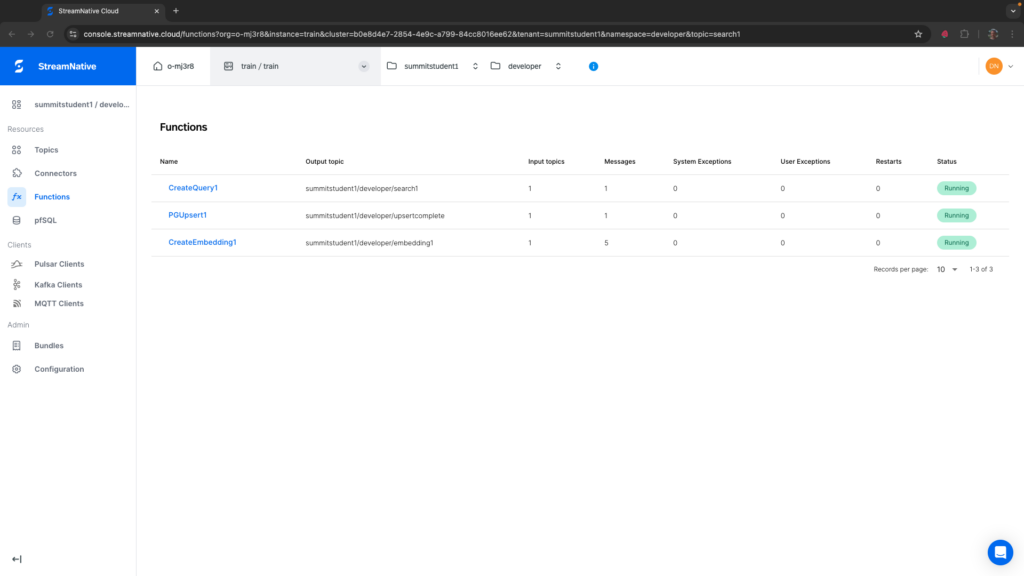
If you see any System Exceptions or User Exceptions, view Troubleshooting Pulsar Functions.
We will use the UI to check the results in the output topic. Navigate to the correct tenant and namespace where you deployed the Pulsar Function. Select the search1 topic. After creating a subscription, we can peek at the message.
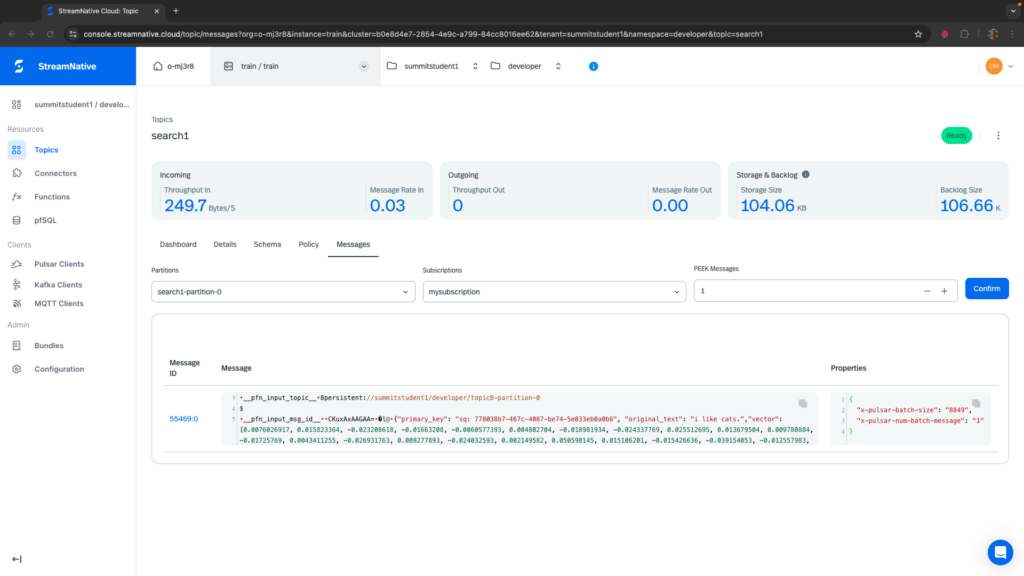
You should see the primary_key prepended with “sq: “, the original text, and the vector representation of the text. We’re ready to use this vector to complete a similarity search.
Deploy Sim1
Code for this example can be found in streamnativerag1 class SimilaritySearch.
To deploy:
- Navigate terminal to the folder containing streamnativerag1.zip.
- Execute the following pulsarctl command. Be sure to edit the tenant in three places in the command where you would like to deploy the Pulsar Function (–input, –output, –tenant). Be sure to use your postgres_endpoint in the user-config. The code assumes you are using the default postgres user, but this would be a quick change in the code!
pulsarctl functions create --classname streamnativerag1.SimilaritySearch --py ./streamnativerag1.zip --inputs summitstudent1/developer/search1 --output summitstudent1/developer/simoutput1 --tenant summitstudent1 --namespace developer --name Sim1 --secrets '{"PGSECRET": {"path": "postgrespassword", "key": "mypassword"}}' --user-config "{\"postgres_endpoint\":\"database-1.cluster-cjkgkqwq8ku7.us-east-1.rds.amazonaws.com\"}"If the Pulsar Function deploys, you should see:
Created Sim1 successfullyIt may take a minute or two for the function to deploy. Once fully deployed, you should see Sim1 has a Status of Running. If you see any System Exceptions, view Troubleshooting Pulsar Functions.
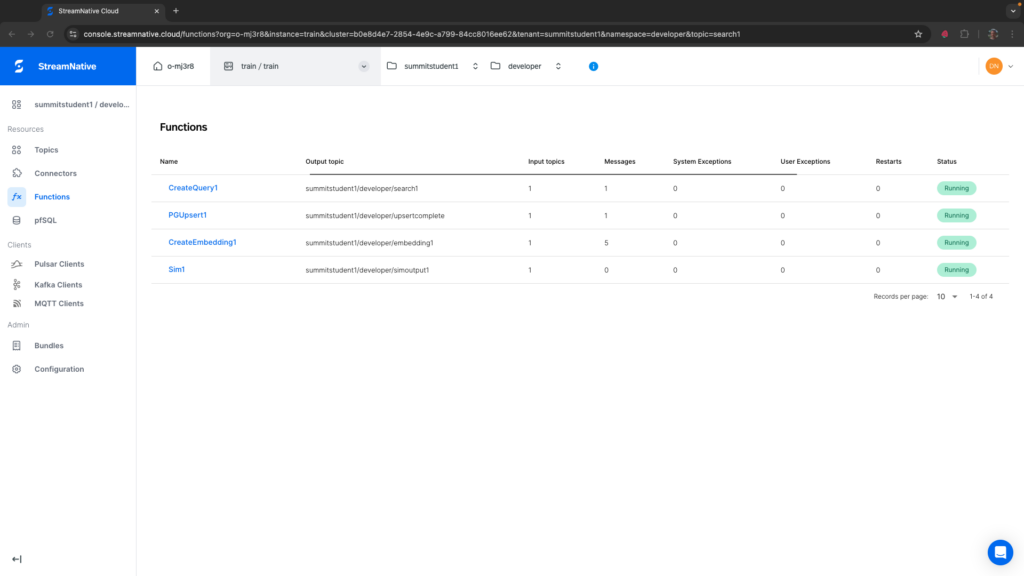
The code will create create a postgres connection and fetches the top two results from myitems. The original_text of the top two results will be formatted and written to an output topic for further processing.
try:
    self.pg
except:
    postgresendpoint = context.get_user_config_value("postgres_endpoint")
    DB_HOST = postgresendpoint
    DB_PORT = 5432
    DB_NAME = 'postgres'
    DB_USER = 'postgres'
    DB_PASSWORD = context.get_secret("PGSECRET")
    self.pg = psycopg2.connect(
        host=DB_HOST,
        port=DB_PORT,
        database=DB_NAME,
        user=DB_USER,
        password=DB_PASSWORD,
        connect_timeout=10
    )

cursor = self.pg.cursor()

data = json.loads(record)

cursor.execute("""
    SELECT id, original_text, embedding
    FROM myitems
    ORDER BY embedding <-> %s::vector
    LIMIT 2;
""", (data["vector"],))

results = cursor.fetchall()
Test Sim1
To test Sim1, repeat the process of publishing to topicB. This will trigger CreateQuery1 to write the vector to search1.
curl -X POST https://<SERVER ENDPOINT>/admin/rest/topics/v1/persistent/summitstudent1/developer/topicB/message \
  --header 'Authorization: Bearer <JWT TOKEN>' \
  --header 'Accept: application/json' \
  --header 'Content-Type: application/octet-stream' \
  --data-binary 'I like cats.'
If Sim1 triggered, you should see 1 in the Messages column.
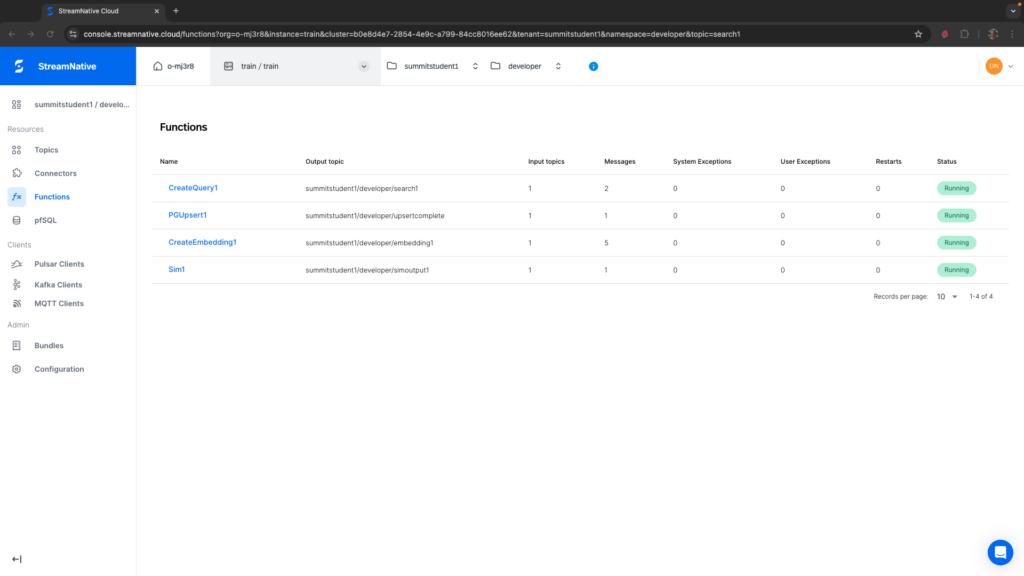
Navigating to the output topic of Sim1, simoutput1, let’s view the text of the top two results returned from the similarity search by creating a subscription and peeking at the messages. Since our search_query was related to cats, the top two results returned from the similarity search were related to cats.
{"results":[
{"primary_key": "38551df6-a43c-4eb9-84e2-f8e48968b9d3", "original_text": "cats are friendly animals.","vector":  [0.022506714,0.02166748,...-0.009773254,-0.016357422]},
{"primary_key": "8641feb8-df24-4c92-9ced-c621c9835eb0", "original_text": "cats can be many different colors.","vector":  [0.018692017,0.015792847,...-0.026535034,-0.0072784424]}
]}
In the next section we will use AWS Bedrock Meta Llama 3.2 to summarize this data.