Prerequisites
Before arriving at Data Streaming Summit 2024 Live Training, please complete the prerequisites. It it highly recommended that you prepare your environment prior to the start of the course. There will not be dedicated time during the training and we cannot guarantee the venue’s internet will be able to support downloading Java, Maven, dependencies, etc. The prerequisites are:
- Prepare and test your Java 17 + Maven development environment, including your connection to the StreamNative Cluster.
- Install pulsarctl.
If you have any questions, please reach out to StreamNative Training at training-help@streamnative.io.
Preparing and Testing your Java 17 + Maven Development Environment
- Install Java 17 and Maven:
We will be using the Kafka and Pulsar Java Clients throughout the course. You will need to compile Java code locally on your machine.
The following guides may be helpful for installing Java 17 and Maven. Students have also used Java 21 without issues. We recommended using Intellij as an IDE. A free Community Edition is available. For reference, we will be using version 3.3.1 of the Pulsar Java Client.
- Download HelloWorld Java example:
Download and import the following Java code into your IDE.
- Test HelloWorld example including downloading dependencies from pom file:
You should have already been emailed an OAuth2 Key and API Key for a service account with access to a tenant in a StreamNative Cluster. Your service account and tenant have the same name (e.g. summitstudent1). Your tenant already contains a single namespace called developer.
To test the HelloWorld Java code, you will need to make the following changes:
- In Intellij, right click on pom.xml and selecte Maven->Reload project. This will load the dependencies.
- Edit the tenant on line 25 of SNProducerString to use your student id (e.g. summitstudent1/developer/kafkahelloworld is the tenant/namespace/topic).
- Copy the OAuth2 key (json file emailed to you) into the resources folder, or another location on your machine.
- Edit credentialsUrl (line 13) to use the full path to this json file. It can be tricky to get this path right the first time! Here are some some examples for a Mac or Windows machine:
Mac: (note there are THREE forward slashes after "file:")
String credentialsUrl = "file:///Users/dustinnest/Desktop/SNSpecificWork/Intellij/StreamNativeHelloWorld/src/main/resources/o-mj3r8-summitstudent1.json";

Windows (note that there are SIX backslashes after "file:")
String credentialsUrl = "file:\\\\\\Users\\dustin.nest\\CourseFiles\\PulsarClassFiles\\StreamNativeHelloWorld\\src\\main\\resources\\o-mj3r8-summitstudent1.json";
Execute SNProducerString.java.
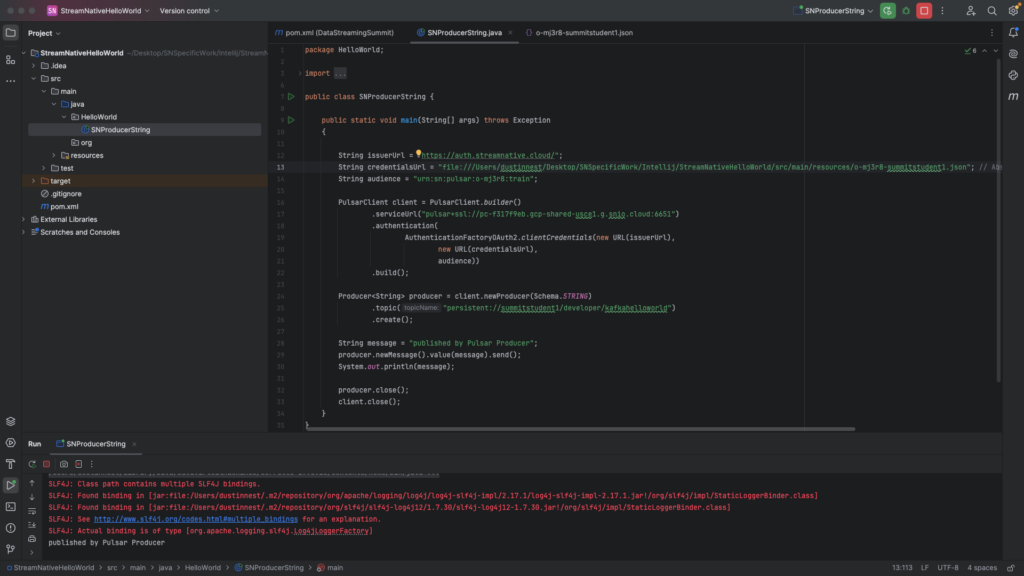
You should see the following output if you were able to connect to the cluster and publish your first Pulsar message:
published by Pulsar ProducerIf you see the following error, it indicates the path to the json is likely incorrect.
Caused by: java.lang.RuntimeException: Failed to create TLS context

Caused by: org.apache.pulsar.client.api.PulsarClientException$AuthenticationException: Unable to read private key: /Users/dustinnest/Desktop/SNSpecificWor/Intellij/StreamNativeHelloWorld/src/main/resources/o-mj3r8-summitstudent1.json (No such file or directory)
If you see the following error, you connected to the cluster but are likely trying to publish messages to a tenant you don’t have permissions to. Check tenant/namespace/topic again.
{"errorMsg":"Exception occurred while trying to authorize get Partition Metadata","reqId":212658118672396512, "remote":"pc-f317f9eb.gcp-shared-usce1.g.snio.cloud/34.173.1.22:6651", "local":"/10.0.0.185:61723"}Installing pulsarctl
We will be using pulsarctl from your local machine to deploy Python Pulsar Functions to the StreamNative cluster. We will not be executing any Python code locally.
Please download and install pulsarctl using the directions here.
After installing pulsarctl, follow the directions to create a context (edit –key-file to point to the OAuth2 json file):
pulsarctl context set train  \
    --admin-service-url https://pc-f317f9eb.gcp-shared-usce1.g.snio.cloud \
    --issuer-endpoint https://auth.streamnative.cloud/ \
    --audience urn:sn:pulsar:o-mj3r8:train \
    --key-file file:///YOUR-KEY-FILE-PATH

pulsarctl oauth2 activate
The connection isn’t tested until you execute pulsarctl oauth2 activate. If you are connected successfully, you should see the following :
dustinnest@Dustins-MacBook-Pro pythonexamples % pulsarctl oauth2 activate
Logged in as summitstudent1@o-mj3r8.auth.streamnative.cloud.
Welcome to Pulsar!
To test pulsarctl, try executing a search for namespaces in your tenant. You should see that you have one namespace in your tenant.
dustinnest@Dustins-MacBook-Pro pythonexamples % pulsarctl namespaces list summitstudent1
+--------------------------+
|      NAMESPACE NAME      |
+--------------------------+
| summitstudent1/developer |
+--------------------------+
We will be using pulsarctl to deploy Pulsar Python Functions to the cluster during the the course.