Kafka on StreamNative Testing Guide
We encourage you to sign up for a free StreamNative Cloud Account at streamnative.io and take advantage of $200 in free credits (no credit card required). Or if you have an existing StreamNative Cluster, this guide will also help you make sure it’s ready for testing Kafka on StreamNative.
Step 1: Choosing a Cluster Type for Testing Kafka if Creating a New Cluster
1. If don’t already have an existing StreamNative Cloud Account, create an account and StreamNative Organization at streamnative.io. Your new account should come with $200 in free credits.
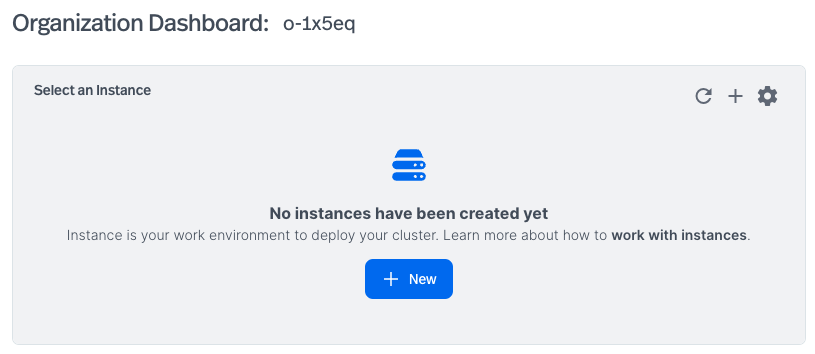
2. After creating your StreamNative Cloud Account and your first StreamNative Organization, you’ll be presented with the option of creating your first Instance and Cluster. Click + New to start creating your first Instance.
3. You’ll be presented with three cluster options: Serverless, Dedicated, and BYOC. Details of cluster types can be found here, but the following should help you decide which cluster type and engine to use for testing Kafka.
If this is your first time deploying a StreamNative Cluster, we suggest using Serverless. You’ll have the option of deploying to AWS, Google Cloud, or Microsoft Azure. The Cluster will deploy using the Rapid Release Channel of the Classic Engine, with the most up-to-date support for the Kafka protocol, while also supporting the Pulsar protocol. This will also be the most cost effective use of your $200 in free credits. Only select regions are available when using Serverless.
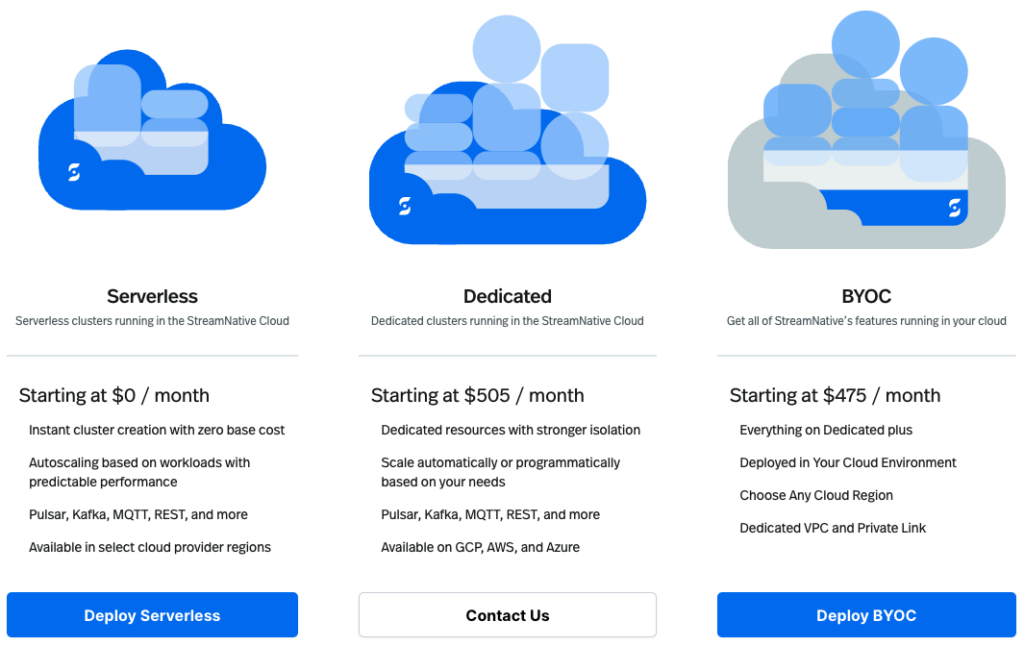
Dedicated Clusters provide users the ability to size their clusters with dedicated resources and stronger isolation, still fully managed using StreamNative’s cloud resources. Contact StreamNative if you are interested in testing a Dedicated Cluster.
BYOC (Bring Your Own Cloud) Clusters are fully managed by StreamNative, but use resources in your Cloud Provider. The $200 in free credits can be used for testing a BYOC Cluster but requires the additional steps of providing StreamNative access to your Cloud Account, deploying a Cloud Connection, and deploying a Cloud Environment. You can then deploy the BYOC Cluster to the Cloud Environment in your Cloud Provider. Additional notes on BYOC Clusters:
- Both the Classic Engine (AWS, Google Cloud, and Azure) and the Ursa Engine (AWS) are available with BYOC Clusters.
- If deploying the Classic Engine, be sure to use the Rapid Release Channel for the best Kafka protocol support. The Classic Engine provides full support for Pulsar and Kafka protocols, with extremely low latency due to its use of BookKeeper as the storage layer.
- The Ursa Engine, currently in Public Preview and without support for transactions and topic compaction, is built directly on Lakehouse Storage for relaxed latency workloads. This greatly reduces infrastructure cost by reducing inter-AZ traffic and removes the complexity and cost of deploying BookKeeper. The Ursa Engine also supports direct integration with Databricks Unity Catalog (Public Preview), Snowflake Open Catalog (Polaris) (coming soon) and S3 Tables (coming soon).
We hope these descriptions help in choosing which cluster type to use when testing Kafka on StreamNative. Additional details can be found here.
Step 2: Check for Kafka Compatibility if using Existing Cluster
If you have an existing StreamNative Cluster, it’s important to check the cluster for Kafka compatibility.
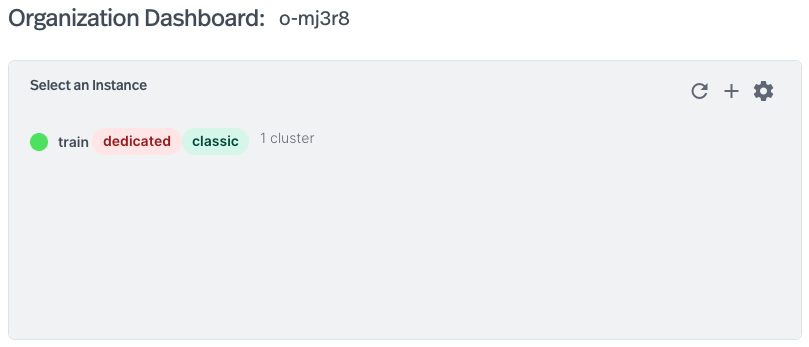
1. On the Organization Dashboard, each instance will show the type of cluster deployed. In the below image, train is a dedicated cluster. You may also see your cluster is serverless or byoc. The cluster uses the classic engine. You may also see that your cluster is using the ursa engine.
If your cluster is Serverless, you’re all set to start testing Kafka with your cluster! Serverless clusters always use the Rapid Release Channel of the Classic Engine for best Kafka protocol support, and always have the Kafka protocol enabled.
If your cluster is Dedicated, we need to verify the Kafka protocol is enabled and the cluster uses the Rapid Release Channel.
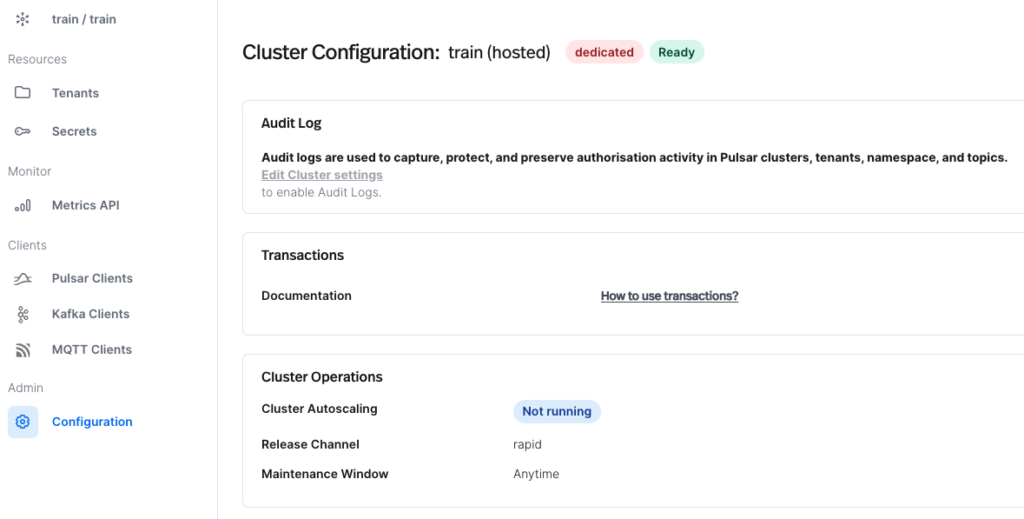
- The Release Channel can be viewed by navigating to the Cluster Configuration page and clicking Configuration in the left pane. For testing the Kafka protocol, the Release Channel should say “rapid”. It is not possible to change the Release Channel of an existing cluster. If you require testing the Kafka protocol, you should create a new cluster.
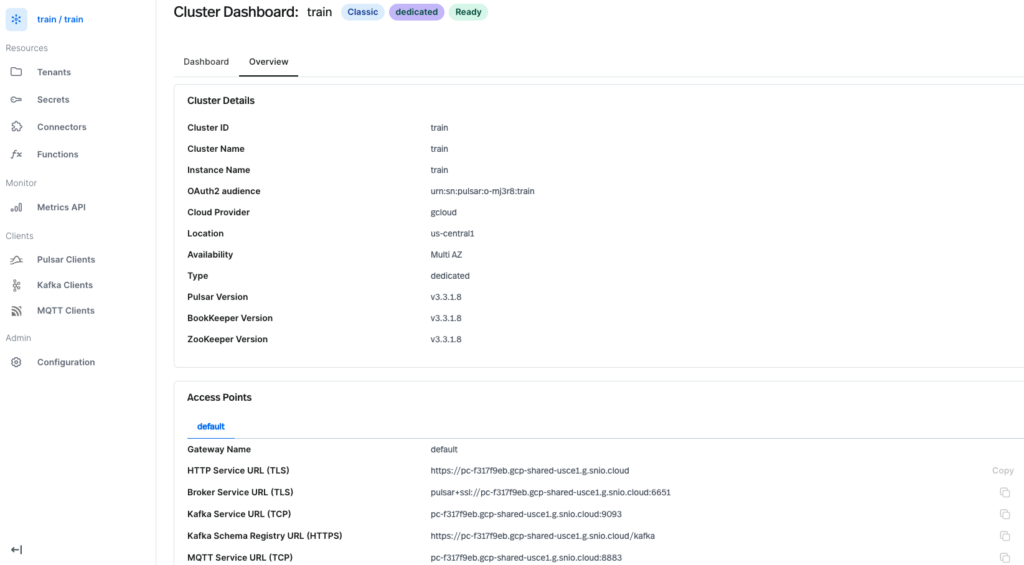
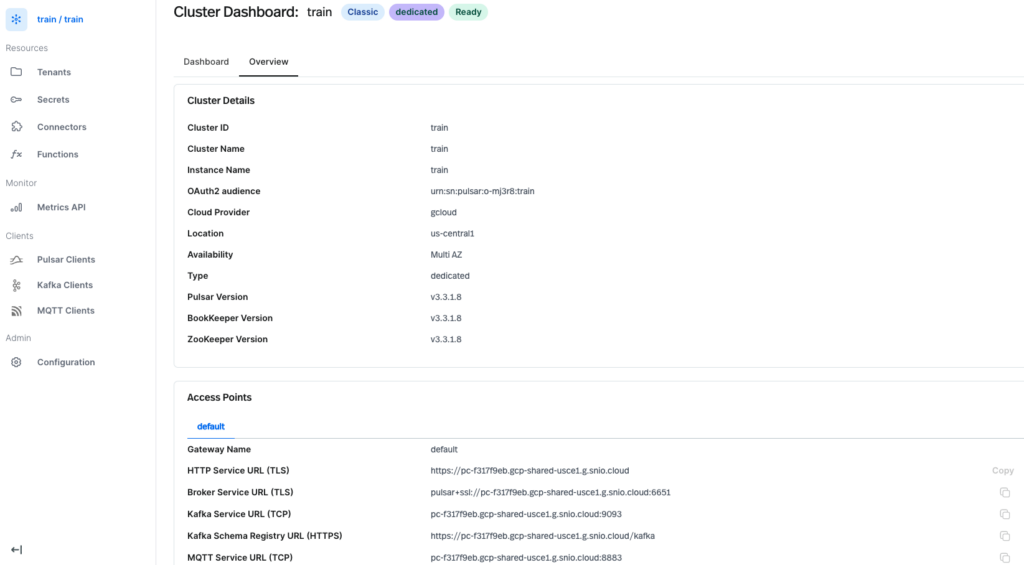
- To check if the Kafka protocol is enabled for your cluster, navigate to the Cluster Dashboard and select the Overview Tab. In Access Points, If the Kafka protocol is enabled, you will see Kafka Service URL (TCP) and Kafka Schema Registry URL (HTTPS).
- If the Kafka endpoints are missing, it is possible to enable Kafka on an existing cluster. From the Cluster Dashboard, select Configuration in the left pane. Select Edit Cluster in the top right corner. You should have the option to enable Kafka on StreamNative under Features. If the option is unavailable, contact StreamNative support.
- Kafka on StreamNative is enabled by default for all new Dedicated Clusters.
If your cluster is BYOC, support for Kafka will depend on the engine of your cluster (Classic Engine or Ursa Engine). The engine type can be viewed on the Organization or Cluster Dashboards.
- If using the Classic Engine, follow the same directions as a Dedicated Cluster to check if your cluster is ready for testing Kafka (e.g. confirm the Rapid Release Channel and the Kafka Access Points).
- If using the Ursa Engine, the cluster is ready for testing with Kafka. Be aware transactions and topic compaction currently are not supported with the Ursa Engine, which also affects support for KStreams and KSqlDB.
Step 3: Creating Service Account
Now that we have confirmed our cluster supports testing with the Kafka protocol, let’s prepare our Service Account and key (API Key or OAuth2 Key) for connecting to the cluster.
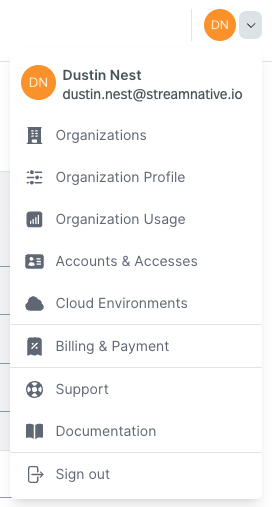
1. Service Accounts are managed through Accounts and Accesses available from the dropdown in the top right corner.
2. Click + New Service Account and give the Service Account a name. In the example below, we create a Super Admin service account with a very high level of privilege.
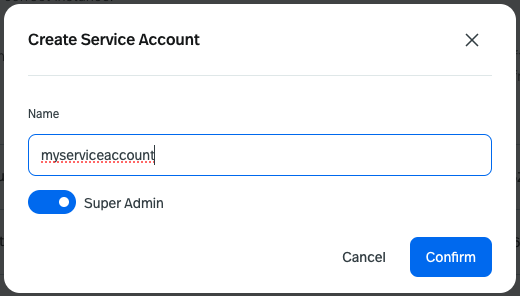
If using a non admin service account, you will need to apply produce and consume permissions on the target namespace for your topic (by default Kafka will use the public tenant and default namespace). If using Kafka schema registry, also apply produce permissions to public/__kafka_schemaregistry/__schema-registry for your service account after creation.
3. Once your Service Account is created, open the dropdown to the far right of the Service Account. You will have option to Create API key or Download OAuth2 Key.
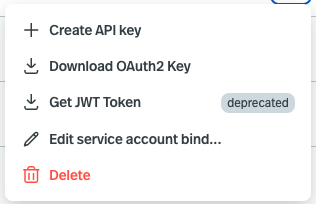
API Keys have an expiration date, can be revoked early (but not extended), and are assigned to a specific instance. Each service account can have multiple API Keys. If your existing Kafka application uses basic.auth.user.info, the API Key can be used in the following format: “token:<API Key>”, where token can be any short string.
OAuth2 is supported for Java Clients using the OauthLoginCallbackHandler described here. This option is available if required, but will likely require additional changes to your existing Kafka code like updating the client library versions to support the callback handler, and adding the callback handler library.
Step 4: Use StreamNative-Provided Code Samples
To get up and running quickly, StreamNative UI includes code samples (Java, GO, Python, Node.js) pre-populated with your cluster’s endpoints. Code samples can be configured to use API Keys or OAuth2 Keys, as well as include schema registry.
1. To view code sample, navigate to Kafka Clients in the Left Pane.
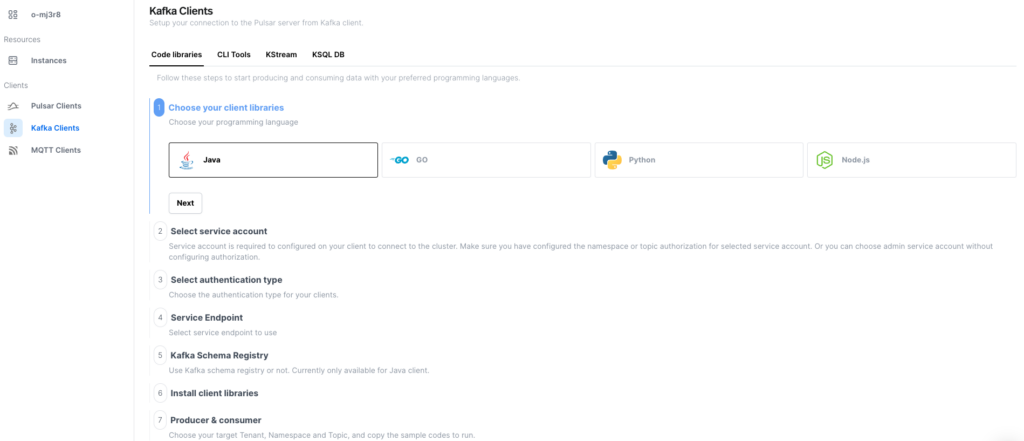
2. Follow the step-by-step directions to obtain the required libraries and sample code for your chosen client library, authentication, and schema registry settings.
StreamNative also provides Kafka Client Guides for Java, GO, Python, Node.js, .NET, C & C++, and Spring Boot.
Step 5: Use Your Existing Kafka Code
We encourage you to view the list of supported Kafka libraries and versions here.
A specific list of Kafka protocol and features supported for the Classic Engine and Ursa Engine are available here.
1. The most common changes required to use existing Kafka code with a StreamNative Cluster are:
Update the Kafka Service URL (TCP) (bootstrap.servers) and Kafka Schema Registry URL (HTTPS) (schema.registry.url). These can both be found under Access Points by navigating to the Overview Tab of the Cluster Dashboard.
Minimal changes will need to be made to your code when using an API Key. You will like only need to update the password to have the format “token:<API Key>” where token is a short string.
An example client.properties file will look as follows:
security.protocol=SASL_SSL
sasl.mechanism=PLAIN
sasl.jaas.config=org.apache.kafka.common.security.plain.PlainLoginModule required username=’user’ password=’token:<API Key>’
In Java Client code:
final String apiKey = "<API Key>";
final String token = "token:" + apiKey;
props.put(CommonClientConfigs.SECURITY_PROTOCOL_CONFIG, "SASL_SSL");
props.put("sasl.mechanism", "PLAIN");
props.put("sasl.jaas.config", String.format("org.apache.kafka.common.security.plain.PlainLoginModule required username=\"user\" password=\"%s\";",token));
2. For configuring schema registry, using an OAuth2 Key, or using other client libraries, additional code examples are available in StreamNative UI or by viewing the Kafka Client Guides.
Step 6: Getting Started with Kafka Course
For complete video tutorials of the following topics, navigate to the free course Getting Started with Kafka on StreamNative:
- Deploying a Servless Clustter
- Creating a Service Account and Required Permissions
- Downloadable Code Examples for connecting to the cluster using API Key and OAuth2, including connecting to Schema Registry
- Using Pulsar Multi-Tenancy with Kafka
- Kafka+Pulsar Shared Topics
- KStreams
Additional Resources
YouTube Playlist Kafka on StreamNative
KStreams
- Documentation: https://docs.streamnative.io/docs/cloud-connect-kafka-stream
- Training: https://courses.streamnative.io/courses/getting-started-kafka-one-streamnative-platform/lessons/kstreams-application/
Multi-Tenancy with Kafka
- Documentation: https://docs.streamnative.io/docs/kafka-multi-tenancy#topic-naming-rule
- Training: https://courses.streamnative.io/courses/getting-started-kafka-one-streamnative-platform/lessons/using-pulsar-multi-tenancy-with-kafka/
Message Retention with Kafka
- Video Tutorial: https://www.youtube.com/watch?v=HfD-6Di-8aU
Topic Partitioning
Schema Registry:
- Documentation: https://docs.streamnative.io/docs/kafka-schema-registry
BYOC Clusters:
- Documentation: https://docs.streamnative.io/docs/byoc-overview
- YouTube Playlist: https://youtube.com/playlist?list=PL7-BmxsE3q4W5QnrusLyYt9_HbX4R7vEN&si=ckLVgobQTA8CwJj7